Posts

Flash CS3 - Custom Mouse Pointer

Click on each mouse pointer pointer.as package { import flash.display.*; import flash.events.*; import flash.filters.*; import flash.text.*; import flash.ui.Mouse; public class pointer extends Sprite { //you can see them on the stage var pnt_1= new Pointer_1(); var pnt_2= new Pointer_2(); var pnt_3= new Pointer_3(); //your current Mouse Pointer var CurrentPointer = new MovieClip(); var Text1:TextField = new TextField(); var Text2:TextField = new TextField(); var Text3:TextField = new TextField(); var DropShadow:DropShadowFilter = new DropShadowFilter(); public function pointer():void { //add three custom pointers on the stage AddPointers(); AddText(); //give them a shadow effect ApplyFilter(); //we use this id in function PointerListener() pnt_1.id=1; pnt_2.id=2; pnt_3.id=3; pnt_1.addEventListener(MouseEvent.CLICK, PointerListener); pnt_2.addEventListener(MouseEvent.CLICK, PointerListener); pnt_3.addEventListener(MouseEvent.CLICK, PointerListener); addChild(CurrentPointer); } private f...
Flash CS3 - A Simple Game

game.as package { import flash.display.*; import flash.ui.Mouse; import flash.events.*; import flash.text.*; public class game extends Sprite { var hits:int=0; var misses:int=0; var shots:int=0; var cDepth:int=100; var level:int=1; var xSpeed:Number=3; var stageWidth:Number=550; var stageHeight:Number=300; var AirCraft_MC:MovieClip = new MovieClip(); var AimMC:MovieClip=new Aim_mc;//MovieClip to aim your gun - we import this MovieClip direct from Lib var stats_txt:TextField=new TextField;// create a text field to display the player's statistics. public function game():void { black_mc.start_btn.addEventListener(MouseEvent.MOUSE_DOWN ,StartFunction); black_mc.start_btn.buttonMode=true; } private function StartFunction(event:MouseEvent ):void { black_mc.visible =false; aim(); stats_txt_fn(); stage.addEventListener(MouseEvent.MOUSE_MOVE,HideMouse); stage.addEventListener(MouseEvent.MOUSE_DOWN,GunShot); stage.addEventListener(Event.ENTER_FRAME,addAirCrafts); } private function aim() { A...

Flash CS3 and XML - Loading XML in Flash

View PersonalDetails.xml loadxml.as package { import flash.display.*; import flash.net.*; import flash.events.*; import fl.controls.DataGrid; import fl.containers.UILoader; import flash.text.*; public class loadxml extends Sprite { var xmlFile:String="PersonalDetails.xml"; var datagrid=new DataGrid; var imgLoader=new UILoader; var nameTxt=new TextField; var occupationTxt=new TextField; var ageTxt=new TextField; var emailTxt=new TextField; public function loadxml():void { callBtn.addEventListener(MouseEvent.CLICK,callServer); } function callServer(e:MouseEvent):void { var urlRequest:URLRequest=new URLRequest(xmlFile); var loader:URLLoader=new URLLoader; loader.addEventListener(Event.COMPLETE,xmlLoaded); loader.load(urlRequest); } function xmlLoaded(e:Event):void { var loader:URLLoader=URLLoader(e.target); var xml:XML=new XML(loader.data); createDataGrid(); createTextFields(); createImageLoader(); // loop through the details and insert each one into the DataGrid for each (var i...

Flash CS3 and PHP - File Upload

ActionScript 3 package { import flash.display.Sprite; import flash.text.TextField; import flash.events.*; import flash.net.*; import fl.controls.Button; public class FileUpload extends Sprite { private var _output:TextField; private var _fileReference:FileReference; var browseButton:Button = new Button(); var uploadButton:Button = new Button(); public function FileUpload() { browseButton.move(10, 30); browseButton.buttonMode = true; browseButton.label = "Browse"; browseButton.addEventListener(MouseEvent.CLICK, browseHandler); addChild(browseButton); uploadButton.move(120,30); uploadButton.buttonMode=true; uploadButton.label ="Upload"; uploadButton.addEventListener(MouseEvent.CLICK, uploadHandler); uploadButton.visible = false; addChild(uploadButton); _output = new TextField(); _output.width = 400; _output.height = 400; _output.y = 75; addChild(_output); _fileReference = new FileReference(); _fileReference.addEventListener(Event.SELECT, selectHandler); _fileReference...

Flash CS3 and PHP - Send and Receive data

Codes sendtophp.as package { import flash.display.*; import flash.events.*; import flash.net.*; import flash.text.*; public class sendtophp extends Sprite { var phpFile:String = "sendDataToServer.php"; public function sendtophp():void { callBtn.addEventListener(MouseEvent.CLICK, callServer); } function callServer(e:MouseEvent):void { var urlRequest:URLRequest = new URLRequest(phpFile); var urlParams:URLVariables = new URLVariables(); urlParams.sampleVal = sendTxt.text; urlRequest.method = URLRequestMethod.POST; urlRequest.data = urlParams; var loader:URLLoader = new URLLoader(); loader.addEventListener(Event.COMPLETE, serverResponse); loader.load(urlRequest); } function serverResponse(e:Event):void { var loader:URLLoader = URLLoader(e.target); var variables:URLVariables = new URLVariables(loader.data); responseTxt.text = variables.returnValue; } }//end of class sendtophp }//end of package sendDataToServer.php print "returnValue= Hi ".$_POST['sampleVal']....

A Simple Car Animation

Image
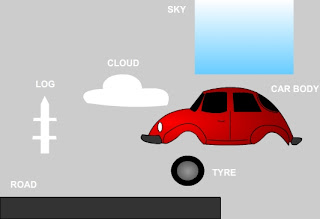
What you see on the stage What actually happens We need 6 graphics for this animation Draw them as shown in the above image (You don’t need to write the name, only graphics) Now you have 6 graphics on the stage 1. SKY 2. CLOUD 3. LOG 4. CAR BODY 5. TYRE 6. ROAD Click on Selection Tool (V) and draw a rectangle around the cloud to select it. Press F8 You should immediately see a popup dialogue box Name - cloud Type – Movie Clip Registration – Center Then press OK See the drawing has been converted to a Movie clip symbol Do the same steps for · SKY · LOG · CAR BODY · TYRE · ROAD Select the tyre Movie clip with Selection Tool (V) Press the Alt key and drag the tyre to right side Release the mouse and Alt key Now you have two tyres !!!! Now we are ready for the animation Arrange car and tyres and select them all (Car and two tyres). (For multiple section use Shift key) Press F8 Name it car Now we need a fence like this Select the log Press Ctrl+C – (copy) then Ctrl +Shift+ V (Paste in Place...

Classes

Image
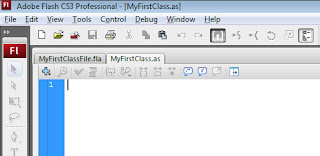
Classes Before AS3 you don’t need thorough knowledge in flash to do animations and interactive presentations. But in case of AS3 the scenario is different. Even if you try to learn it from online tutorials you will certainly be blocked by some barriers knows as classes. This tutorial is only for beginners in AS3 which will explain the functioning of a simple class. Create a folder named MyClass anywhere in your computer Create next folder classes as a subfolder of MyClass Open Adobe Flash CS3 Professional then create a new Flash file (ActionScript 3) and save it as MyFirstClassFile.fla in your MyClass folder In file menu select New > ActionScript File Save it as MyFirstClass in your folder MyClass > classes Now you can see two tabs named MyFirstClassFile.fla and MyFirstClass.as in your window Select MyFirstClass.as and type the following package classes{ public class MyFirstClass { public function MyFirstClass() { trace("MyFirstClass is working"); } } } back to MyFirstC...